Quick start
From a new project to a blinking LED in a few steps.
1. Choose your board
Start Logix and wait until the output area at the bottom shows Ready. Logix starts with a new project for the Alhambra II board, from its basic example (blinky). If you have another board, choose it in the list in the toolbar: Logix offers the board's examples. Choose blinky (on a few boards it's called ledon) and click Open.
The project has everything needed to build: main.v (the design), a pin file such
as pinout.pcf (which FPGA pins connect to what on the board), and usually a
testbench, main_tb.v.
2. Verify
Click Verify (the check mark, Cmd+R). Logix checks the design for common mistakes, builds it, and shows how much of the FPGA it uses:
Build succeeded in 2.4 s. Uses 0.4% of logic cells, max clock 194.4 MHz.
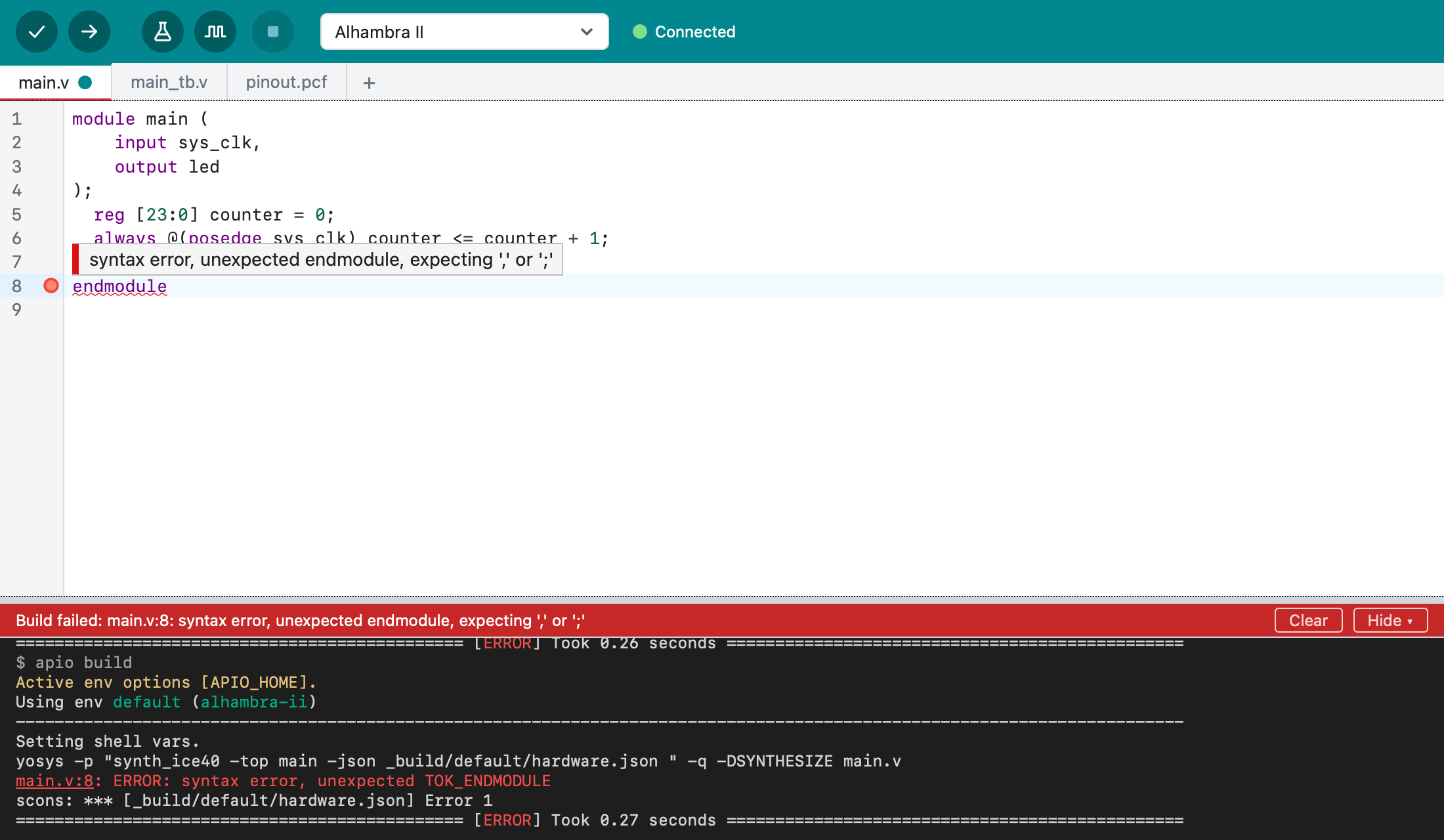
If there's a mistake, the line is marked in the editor and the status bar
says what's wrong. Hover over the mark to read the message. Here, a ; is
missing at the end of line 7, so the tools stop at the next line:
3. Upload
Connect your board with a USB cable. Next to the board list, Logix shows Connected when it recognizes the board. Click Upload (the arrow, Cmd+U): Logix builds the design and programs the board. The LED should start blinking.
If Logix can't find the board, see Troubleshooting.
4. Save
Press Cmd+S and give the project a name. Logix creates a folder for it,
in ~/Documents/Logix by default.
5. Explore
- Change the design: make the LED blink faster, add more LEDs, and click Verify and Upload again.
- Open other examples with File > Examples… (Shift+Cmd+E).
- Try Run Tests and Simulate: see Testbenches and simulation.
- See your design as a diagram: Project > Show Diagram (Shift+Cmd+D).