Testbenches and simulation
A testbench is Verilog code that drives your design with inputs and
checks its outputs, without a board. Testbench files end with _tb.v (or
_tb.sv), e.g. main_tb.v for main.v. Most examples come with one.
Run Tests
Run Tests (the flask, Shift+Cmd+T) runs all the project's testbenches and shows the result of each:
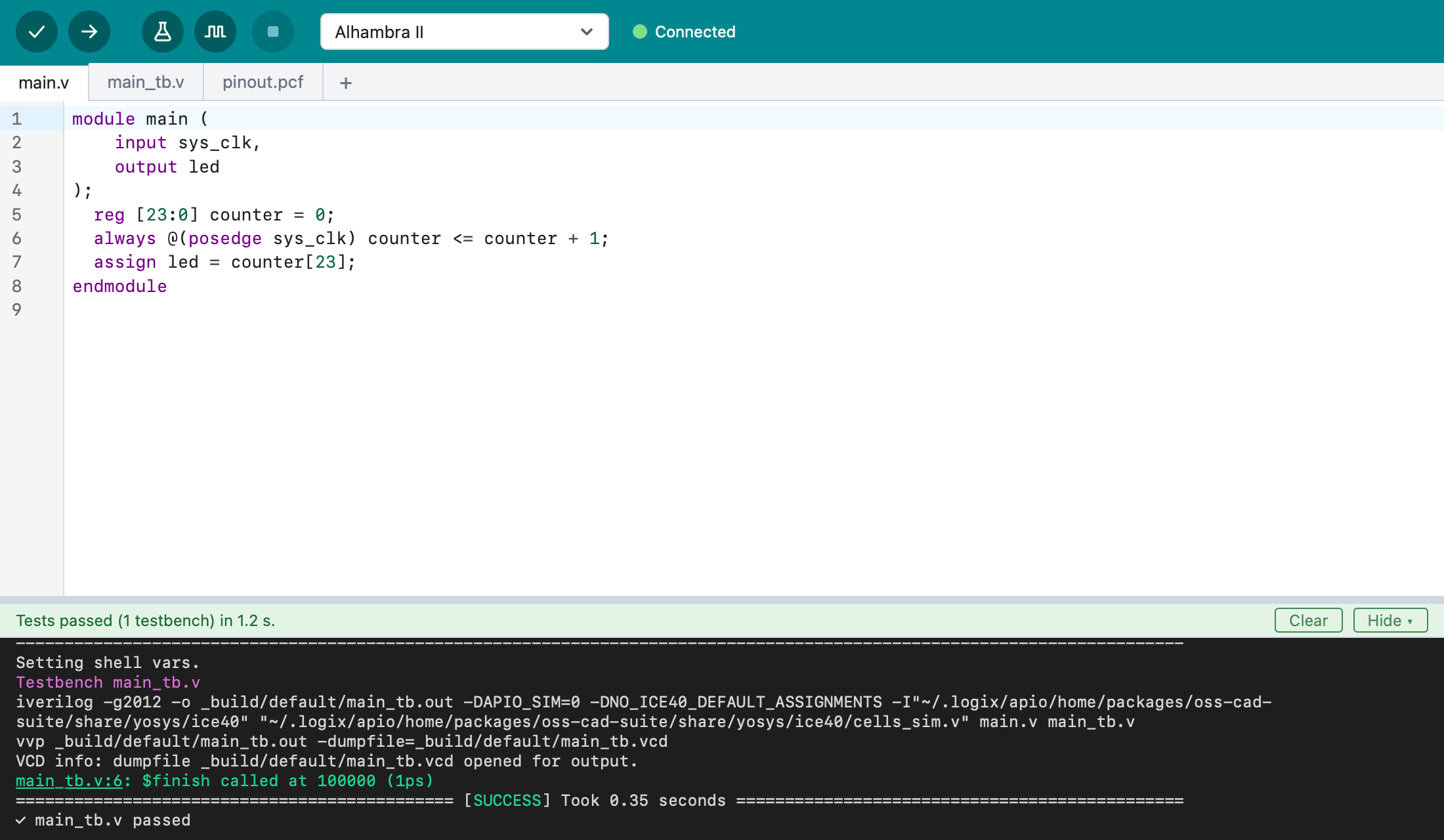
To run just one, right-click its tab and choose Run This Test.
A test fails when the testbench stops with $fatal. The line that failed is
marked in the editor.
Simulate
Simulate (the waveform, Option+Cmd+T) runs the testbench that's open (or the project's only one) and shows its signals in GTKWave, a waveform viewer.
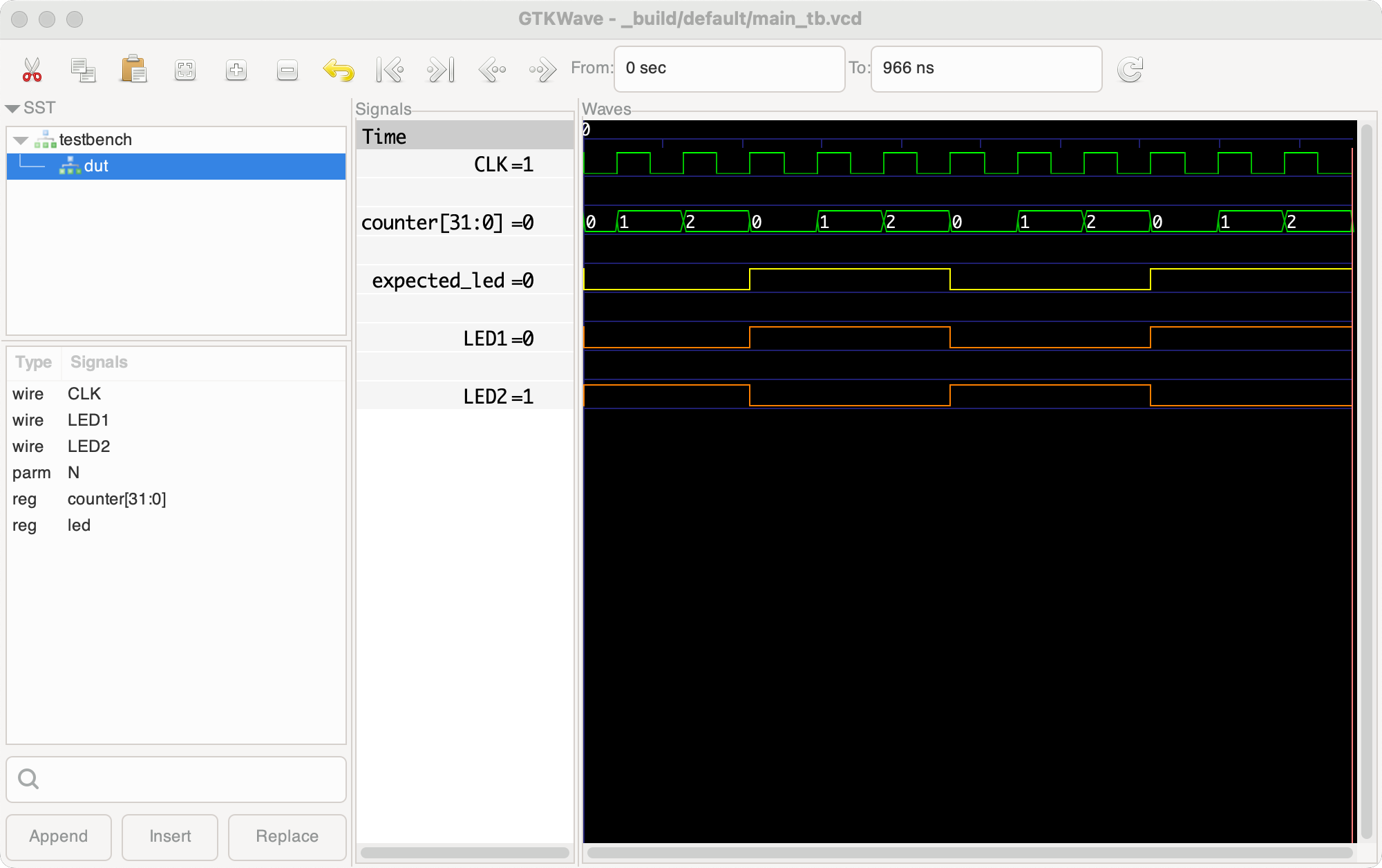
To keep how GTKWave shows the signals, save it from GTKWave with
File > Write Save File. Logix copies the saved layout (a .gtkw file)
into the project, and the next simulation uses it.
Writing a testbench
Create a file whose name ends with _tb.v (the + at the end of the tabs).
Logix fills it with a starting point:
`timescale 1ns / 1ps

module counter_tb;

  initial begin
    $dumpvars(0, counter_tb);

    // Your test steps go here.

    #100;
    $finish;
  end

endmodule
Inside, create the module you test, drive its inputs, and check its outputs. To fail the test when a check fails:
if (actual !== expected) begin
  $display("expected %h, got %h", expected, actual);
  if (!`APIO_SIM) $fatal;
end
`APIO_SIM is 1 when simulating, so the simulation keeps going and you
can look at the signals in GTKWave.
For more about testbenches, see the Apio guide Using testbenches.