A tour of Logix
A short walk through Logix for new users: what it is, what's on the screen, and the path from an idea to a programmed board. Each part links to the page with the details.
What Logix is
"The Arduino experience, for FPGAs." If you've used the Arduino IDE, Logix will feel familiar: you write code, click Verify to check it, and click Upload to put it on your board. The difference is the language: you write Verilog, which describes hardware, instead of C++.
Why it's easy to start
- One installer. No Python, package managers or toolchain setup.
- The FPGA tools come by themselves. On its first start, Logix downloads the open source FPGA tools it needs. You never have to learn or install them yourself.
- Learn by example. More than a hundred examples for over a hundred boards.
To get it, see Installing Logix.
The toolbar
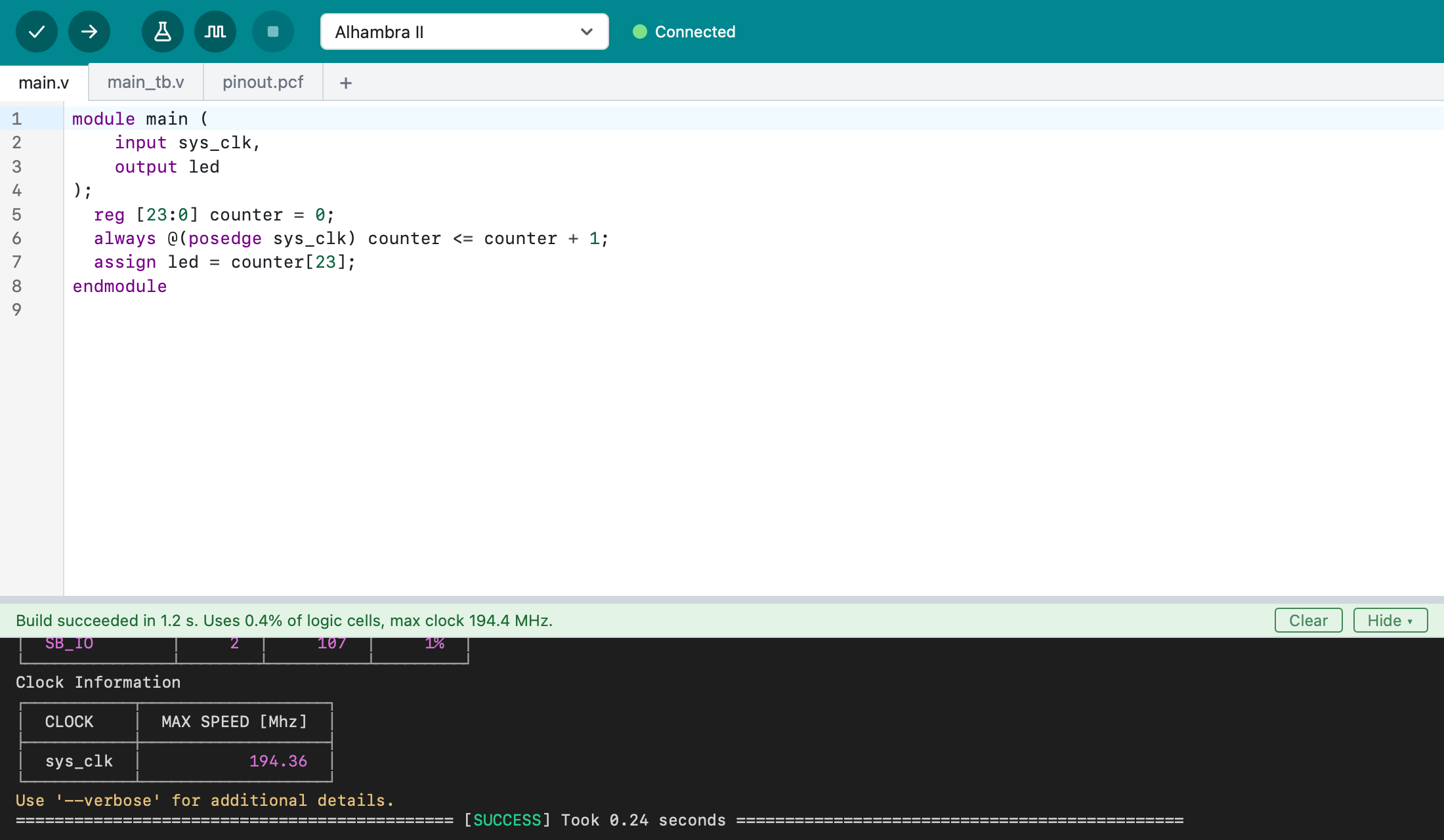
| Button | What it does | Shortcut |
|---|---|---|
| Verify | Checks the design and builds it | Cmd+R |
| Upload | Builds the design and programs the board | Cmd+U |
| Run Tests | Runs the project's testbenches | Shift+Cmd+T |
| Simulate | Shows the signals in GTKWave | Option+Cmd+T |
| Stop | Stops whatever is running | Cmd+. |
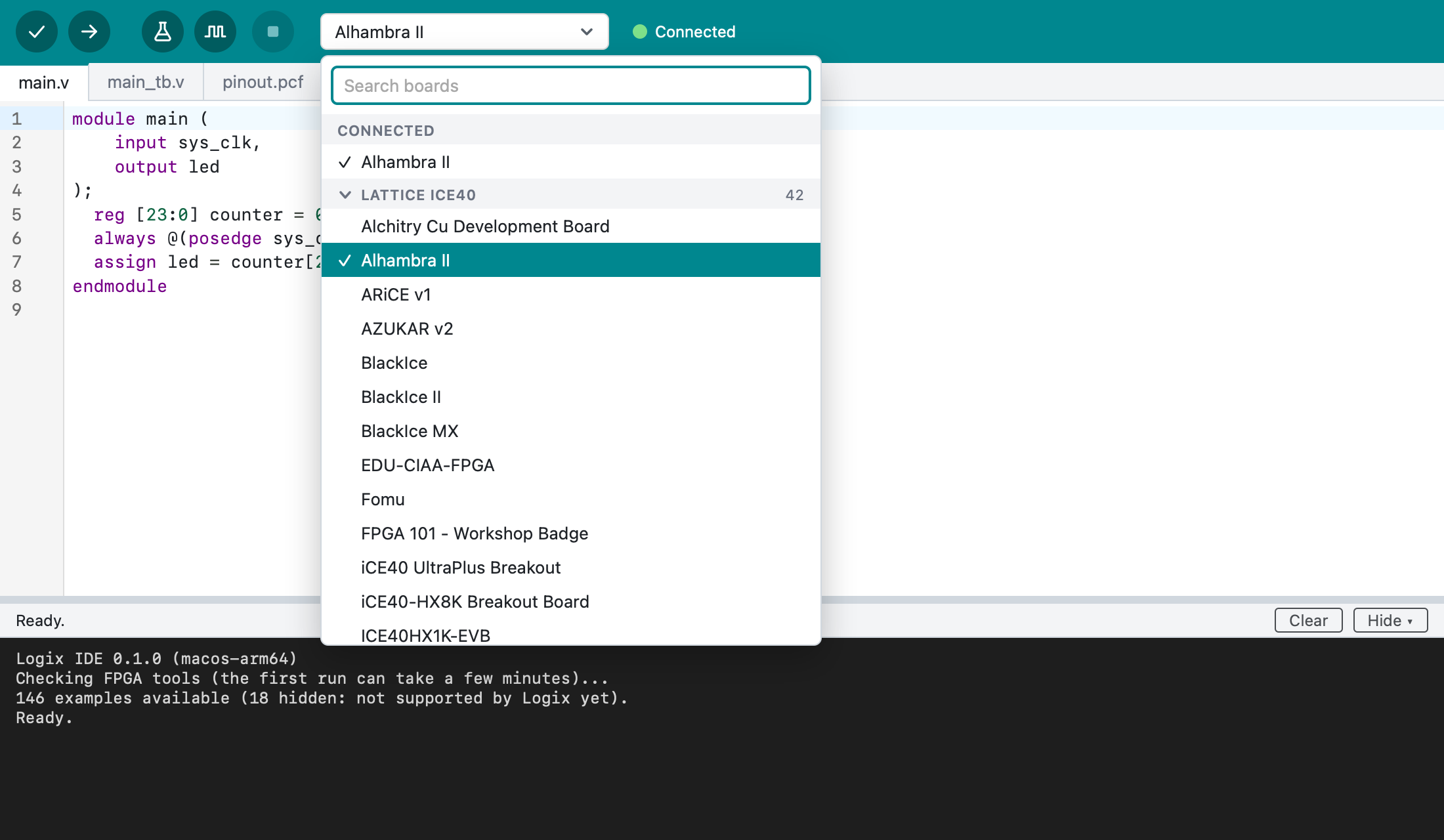
| Board list | Picks your board; boards plugged in come first |
Below the toolbar are a tab for each file, the editor, and the output with a
status line that says what Logix is doing. Mistakes in the grammar, like a
missing ;, are underlined as you type.
A project is a folder
The main file is always main.v, and its module is named main. Other
Verilog files and the board's pin file show up as tabs, and testbenches end
with _tb.v. New projects go to ~/Documents/Logix.
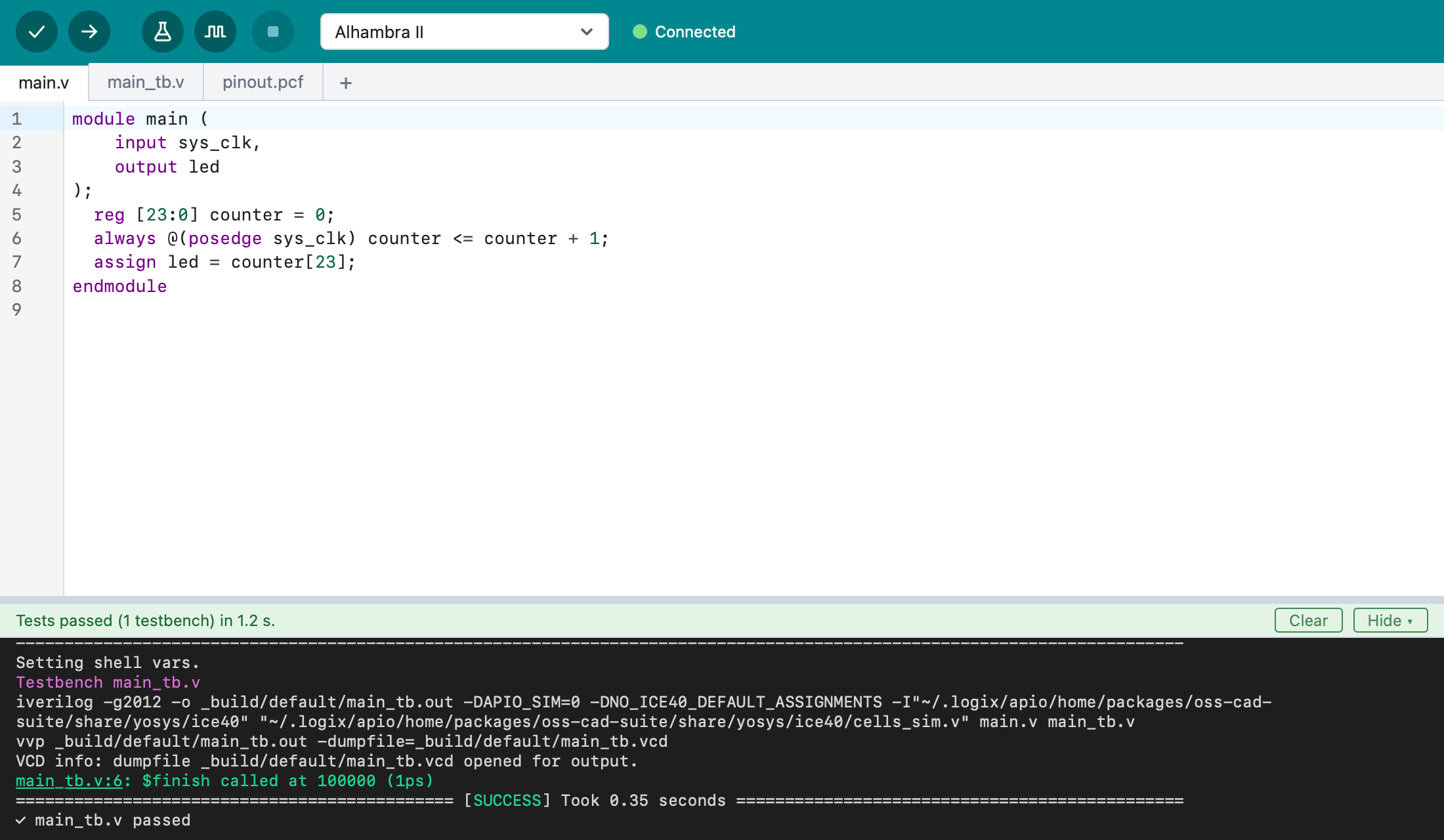
This is blinky, the design a new project starts from. A counter counts clock cycles, and its top bit drives the LED, so the LED blinks:
module main (
    input sys_clk,
    output led
);
  reg [23:0] counter = 0;
  always @(posedge sys_clk) counter <= counter + 1;
  assign led = counter[23];
endmodule
More in Using Logix.
Start from an example
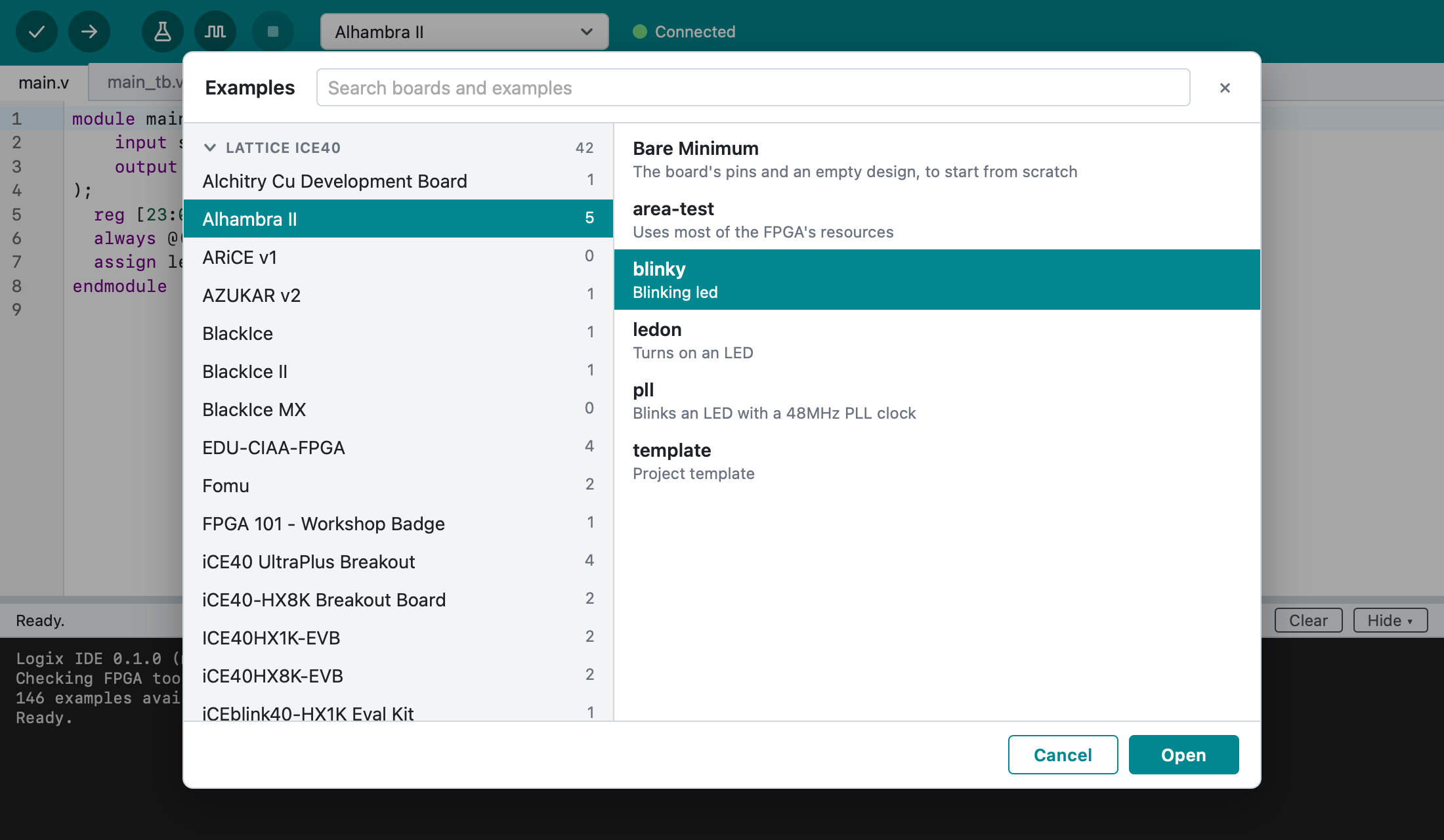
File > Examples… lists the examples for each board, with a search box. Every board's list starts with Bare Minimum: the board's pins and a design that does nothing yet, to start from scratch. Choosing a board never changes your files.
Verify: check, build, report
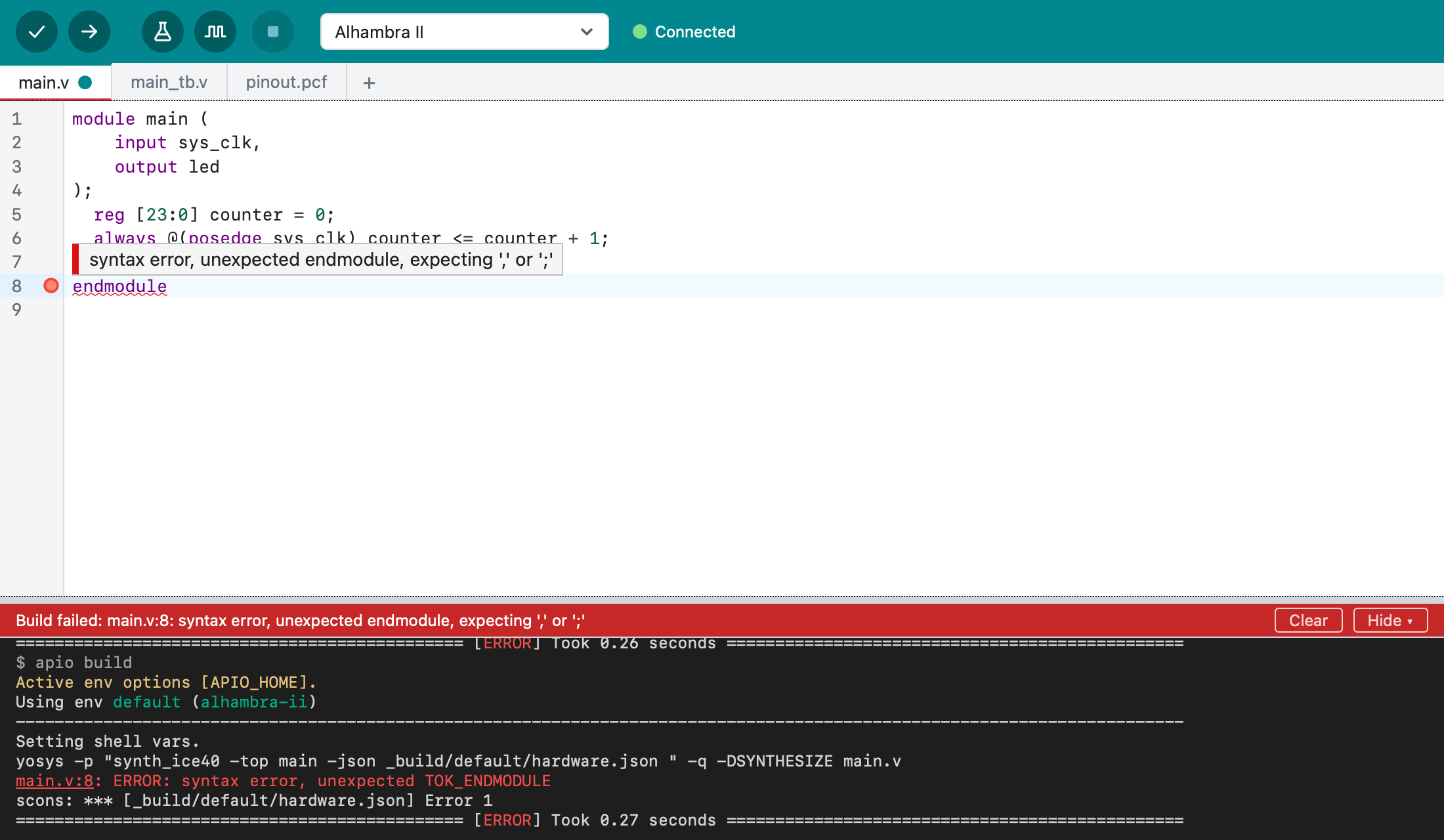
Verify checks the design for common mistakes, builds it for your board,
and reports how much of the FPGA it uses and how fast it can run. A mistake
is marked on its line; hover over the mark to read it, or click the
file:line link in the output to jump there.
Upload: put it on the board
Plug the board in by USB. Next to the board list, Logix says Connected. Click Upload: Logix builds the design, shows how much of the FPGA it uses, and programs the board. If it can't find the board, Tools > Connected Devices… shows what's plugged in, and Troubleshooting has tips.
Test without a board
A testbench drives your design's inputs and checks its outputs, with no board needed. Run Tests runs them all and shows each result; Simulate shows the signals over time in GTKWave. Most examples come with a testbench. More in Testbenches and simulation.
See what you built
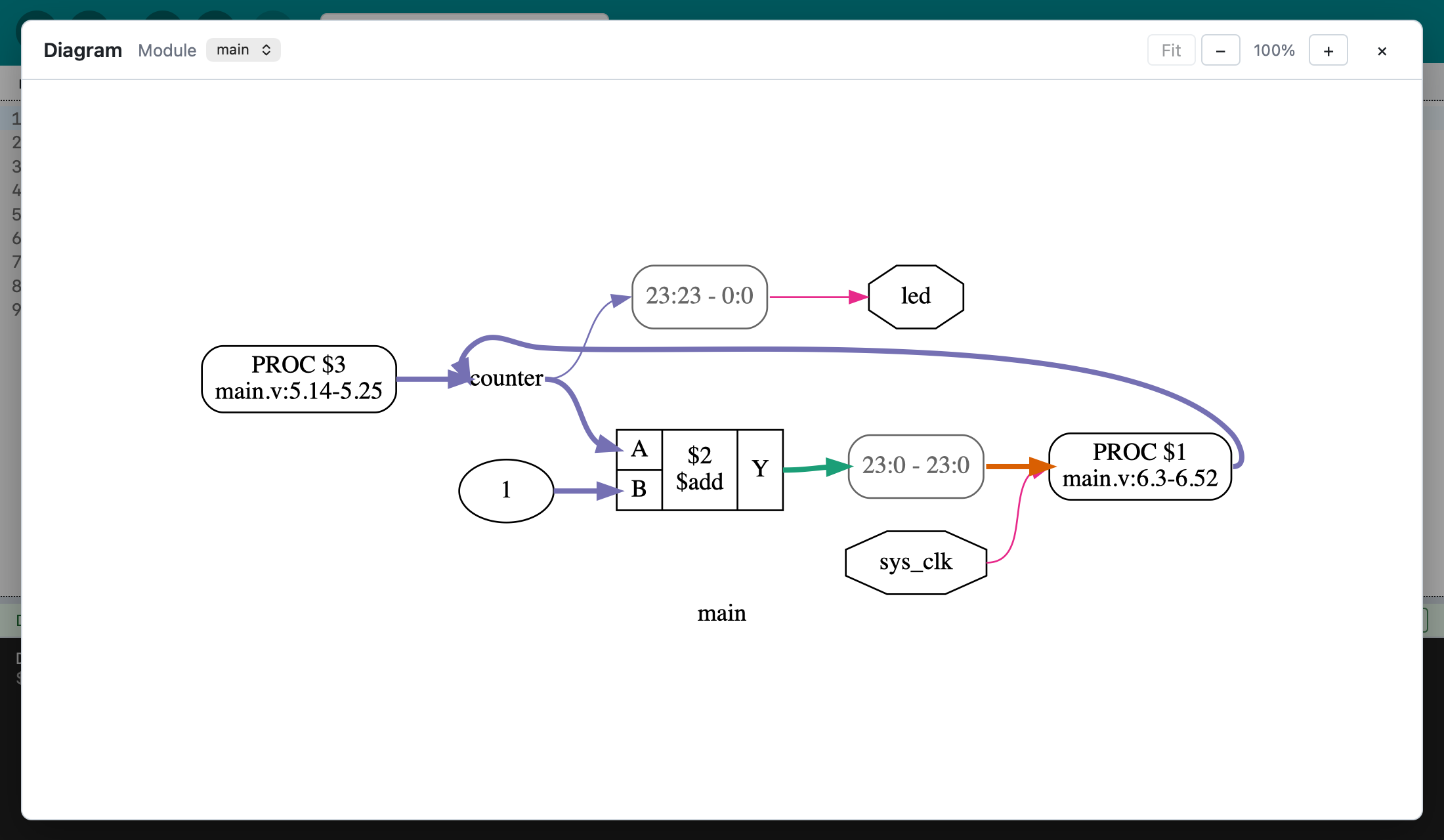
Project > Show Diagram (Shift+Cmd+D) draws your design's modules and signals: a good way to check that the hardware you described is the hardware you meant.
Your first blink
- File > New.
- Pick your board.
- Verify.
- Upload. The LED blinks.
The Quick start walks through it step by step.